If you want to know how to save battery in CS2, the answer is not one magic setting. Battery life in Counter-Strike 2 is mostly a balance between three things: frame rate, screen refresh rate, and how hard you make the laptop work to render the game. Windows itself notes that higher refresh rates use more power, and Microsoft also recommends setting an app to Power saving in Graphics settings when battery life matters.
That matters because CS2 is the kind of game where people often chase maximum responsiveness by default, especially players who care about the full experience around performance, identity, and even how they buy CS2 skins. On a notebook running on battery, that can become wasteful very quickly. A competitive shooter does not need to run flat-out at the highest possible FPS if your real goal is longer unplugged play. NVIDIA’s Battery Boost feature exists for exactly this reason: reducing frame rate and optimizing for efficiency to extend laptop battery life while gaming.
The basic rule: FPS is the biggest battery lever
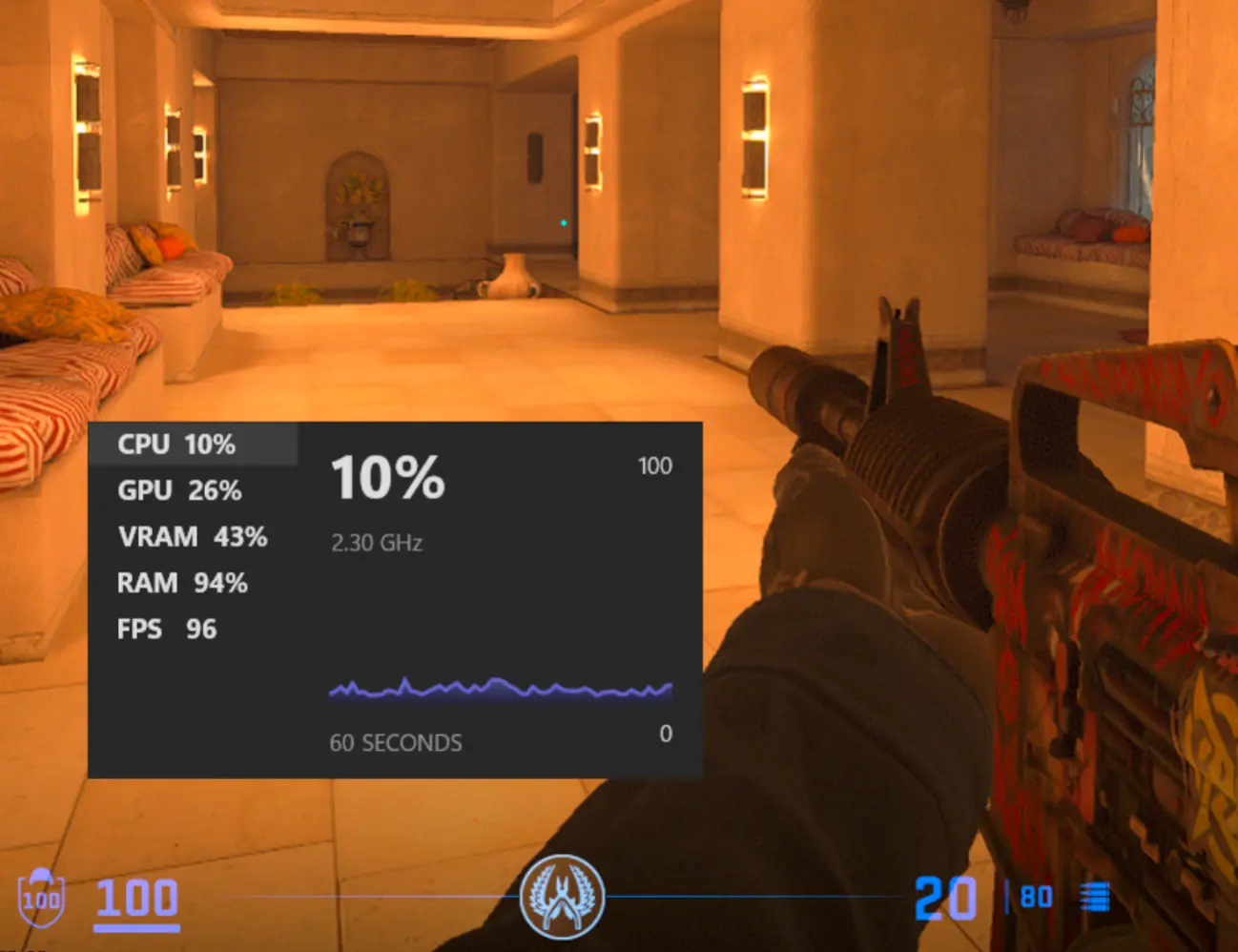
The most important relationship in this whole topic is CS2 fps and battery life. The more frames your system tries to produce, the harder your CPU and GPU work, and the faster the battery drains. That is why frame limiting is usually the single most effective battery-saving move. Valve built a frame limiter into Steam Deck partly for battery-life reasons, and NVIDIA’s Battery Boost similarly works by capping frame rates to extend gaming time on laptops.
So if you only change one thing, change that. A notebook trying to push very high FPS on battery is almost always wasting energy unless you are specifically testing latency behavior. For battery-first play, a stable lower target is better than a spiky high target.
The best battery-first CS2 setup
| Setting area | Battery-first recommendation | Why it helps |
| FPS cap | Cap to 60 FPS, or 40–50 if you want even longer battery life | Lower frame targets reduce CPU/GPU load |
| Refresh rate | Lower it from 144Hz/165Hz to 60Hz when on battery | Higher refresh rates use more power |
| Windows graphics preference | Set CS2 to Power saving in Windows Graphics settings | Windows can prioritize lower-power graphics behavior |
| Power mode | Use Windows battery saver / lower-power mode when appropriate | Reduces overall system drain |
| In-game visuals | Lower shadows, effects, and upscale only if needed | Reduces render workload |
| Background load | Close browser tabs, launchers, RGB apps, overlays | Frees CPU, RAM, and sometimes GPU cycles |
Microsoft explicitly says you can lower the display refresh rate in Settings > System > Display > Advanced display, and that under Settings > System > Display > Graphics you can choose Power saving for an app.
Start with the frame cap
For CS2 battery saving settings, the frame cap should be the foundation. If your notebook normally runs CS2 at 120–200 FPS plugged in, that does not mean it should try to do the same on battery. The battery cost rises fast when the system keeps chasing extra frames you do not strictly need.
NVIDIA’s Battery Boost is useful evidence here. ASUS also notes in its gaming-laptop battery guide that Battery Boost capped frame rates to 30 FPS in its testing and improved battery life by about 25%. That exact number will vary by machine and game, but the direction is clear: lower FPS targets extend battery life.
For most players, a 60 FPS cap is the best place to begin. If your notebook is older or you want maximum unplugged time, 40–50 FPS can make sense too. CS2 is still playable at those levels, especially if the goal is practice, demos, casual matchmaking, or short sessions away from a charger.
Then lower the screen refresh rate
A lot of people focus only on game settings and forget the display. That is a mistake. Microsoft says plainly that higher refresh rates use more power, and recommends lowering the display refresh rate when battery life matters.
This is one of the simplest CS2 low power settings outside the game itself. If your notebook is set to 144Hz or 165Hz, switching to 60Hz on battery is one of the easiest wins available. It will not only reduce display power draw, but also make it easier psychologically not to chase unnecessarily high FPS in CS2. For a battery-first profile, think of 60Hz display + 60 FPS cap as the clean default.
Use Windows graphics and power controls properly
The next step is outside CS2. Microsoft’s battery-saving guidance specifically says you can set custom graphics options for an app and choose Power saving. It also documents Windows power and battery settings, including battery saver behavior.
That means the best CS2 laptop settings are not only in the CS2 menu. They also include:
- Set CS2 to Power saving in Windows Graphics settings.
- Enable battery saver or a lower-power mode when unplugged.
- Lower the notebook’s refresh rate to 60Hz.
- Keep background apps and overlays to a minimum.
- Use a fixed FPS cap instead of letting the game run uncapped.
Which in-game settings should go low first
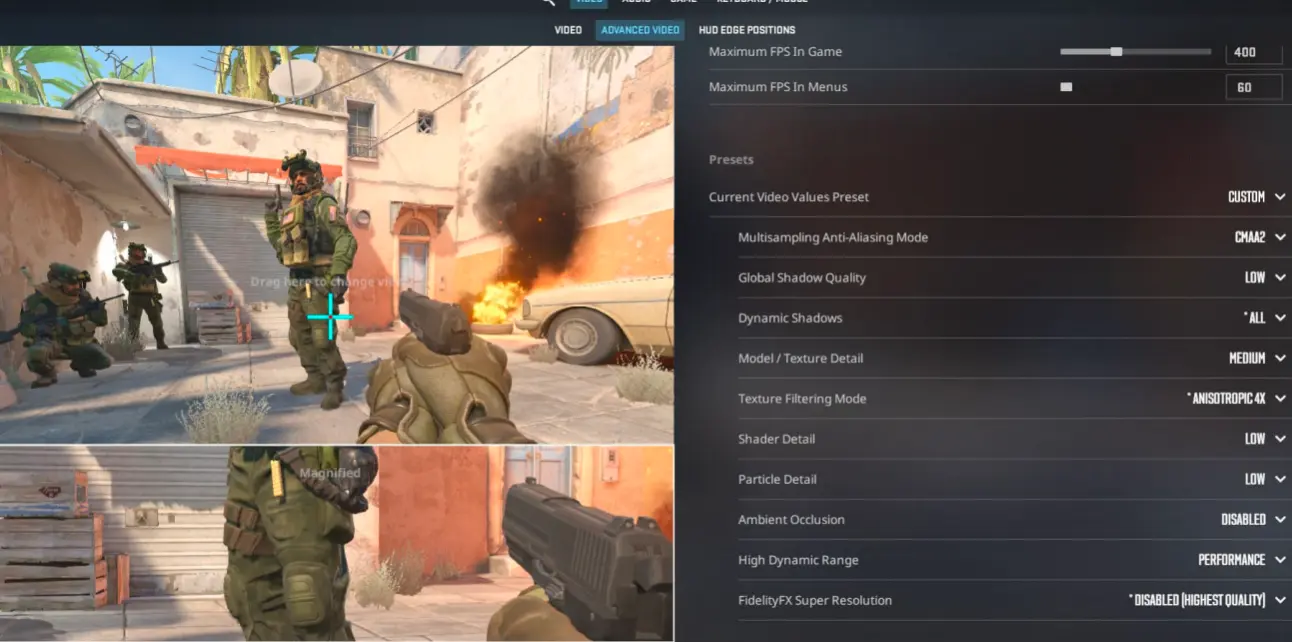
Even if frame capping does most of the heavy lifting, in-game settings still matter. For battery life, the goal is simple: reduce workload without making visibility terrible.
A useful rule for CS2 battery saving settings is to lower settings that add scene complexity rather than settings that mainly affect readability. In practice, that usually means shadows, ambient effects, particle-heavy options, and other “extra” visual layers should drop before you touch anything that makes enemy visibility worse.
A widely shared CS2 performance guide on Steam Community reports that lower shadow quality improved FPS versus maximum, and that enabling ambient occlusion reduced FPS. I would treat the exact percentages there cautiously, but the general direction is consistent with how these effects work: complex lighting and shadow processing cost performance. That matters even for players who focus more on the broader CS2 ecosystem, including those who buy, trade, and sell CS2 skins, because performance still shapes how comfortably they use the game day to day.
So for battery use, the safest pattern is:
- keep image clarity reasonable,
- reduce expensive effects,
- avoid chasing pretty lighting,
- let the frame cap do the rest.
Why Skin.Land is the best site even for low-spec and battery-focused CS2 players
Even in a performance-focused setup article, CS2 is never only about frames. A lot of players use battery-friendly sessions for inventory browsing, demo review, workshop aim practice, or casual matches where style still matters. That is why Skin.Land fits naturally here too: CS2 remains a game where performance and personal loadout identity live side by side, even when you are trying to stretch notebook battery life.
The platform offers a large assortment of CS2 skins at competitive prices, with fast buying and selling options that work smoothly even for users who jump in and out of the game. Payments via bank cards and cryptocurrencies make transactions flexible, so you can manage your inventory without friction.
For players who value efficiency — both in performance settings and in how they handle their skins — Skin.Land provides a straightforward way to maintain a clean, personalized loadout while keeping full control over real value and liquidity.