


A MacBook’s battery will not go from reliable to worn out overnight. Its capacity gradually decreases as you use and recharge it. The cycle count can measure that use to some extent, but it cannot tell the whole story. How quickly those cycles accumulate also depends on what you do between charges.
The apps you use each day can make a noticeable difference to MacBook battery life. A browser packed with active tabs, a video meeting, and an app running unnoticed in the background consume power faster than lighter tasks. Understanding how macOS counts battery cycles and which programs use the most energy will help you reduce unnecessary drain and evaluate your battery more accurately.
Quick Answer: What Counts as a MacBook Battery Cycle?
A battery cycle does not necessarily mean charging your MacBook from 0% to 100%. Apple counts one cycle when you have used an amount equal to the battery’s full capacity. That use can happen all at once or add up over several days.
For example, you may use 40% of the battery and then recharge it. After unplugging it, you may use another 60%. Together, those periods of battery use count as one complete cycle. Connecting the charger several times during that period does not create several separate cycles.
The way macOS records battery cycles gives you a clearer picture of total battery use than the number of times you plug it in. Battery percentage shows how much power is currently available, while cycle count tracks cumulative use over the battery’s lifetime.
To check the cycle count:
- Hold the Option key and click the Apple menu.
- Select System Information.
- Under Hardware, choose Power and find Cycle Count in the Battery Information section.
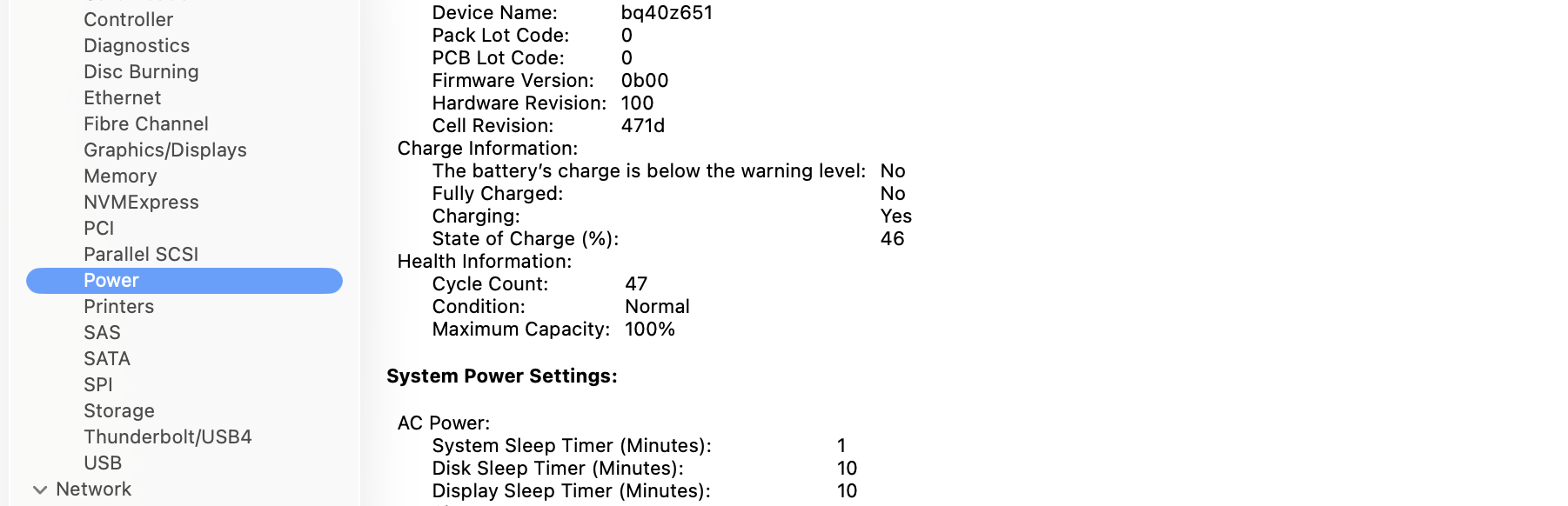
Many recent MacBook models are designed to retain up to 80% of their original capacity at their maximum cycle count, which is commonly 1,000 cycles for current models. The actual condition still depends on age, temperature, charging habits, and workload, so cycle count should be considered together with maximum capacity and the battery condition shown by macOS.
How Everyday Software Affects MacBook Battery Life
Every hour of MacBook use can consume a different amount of energy. Writing in a document is relatively light work, but joining a video call activates the camera, microphone, speakers, network connection, and display at the same time. Photo editing, gaming, software development, and video rendering place greater demands on the processor and graphics system.
Browsers also consume more power than many users expect. Each active tab can run scripts, refresh content, play media, or display animated ads. Having several tabs open is not automatically a problem, but a few busy websites may use more energy than many inactive pages. Cloud storage and productivity apps can also be demanding because they sync files and check for updates while you work elsewhere.
Unused Apps and Background Processes Still Consume Energy
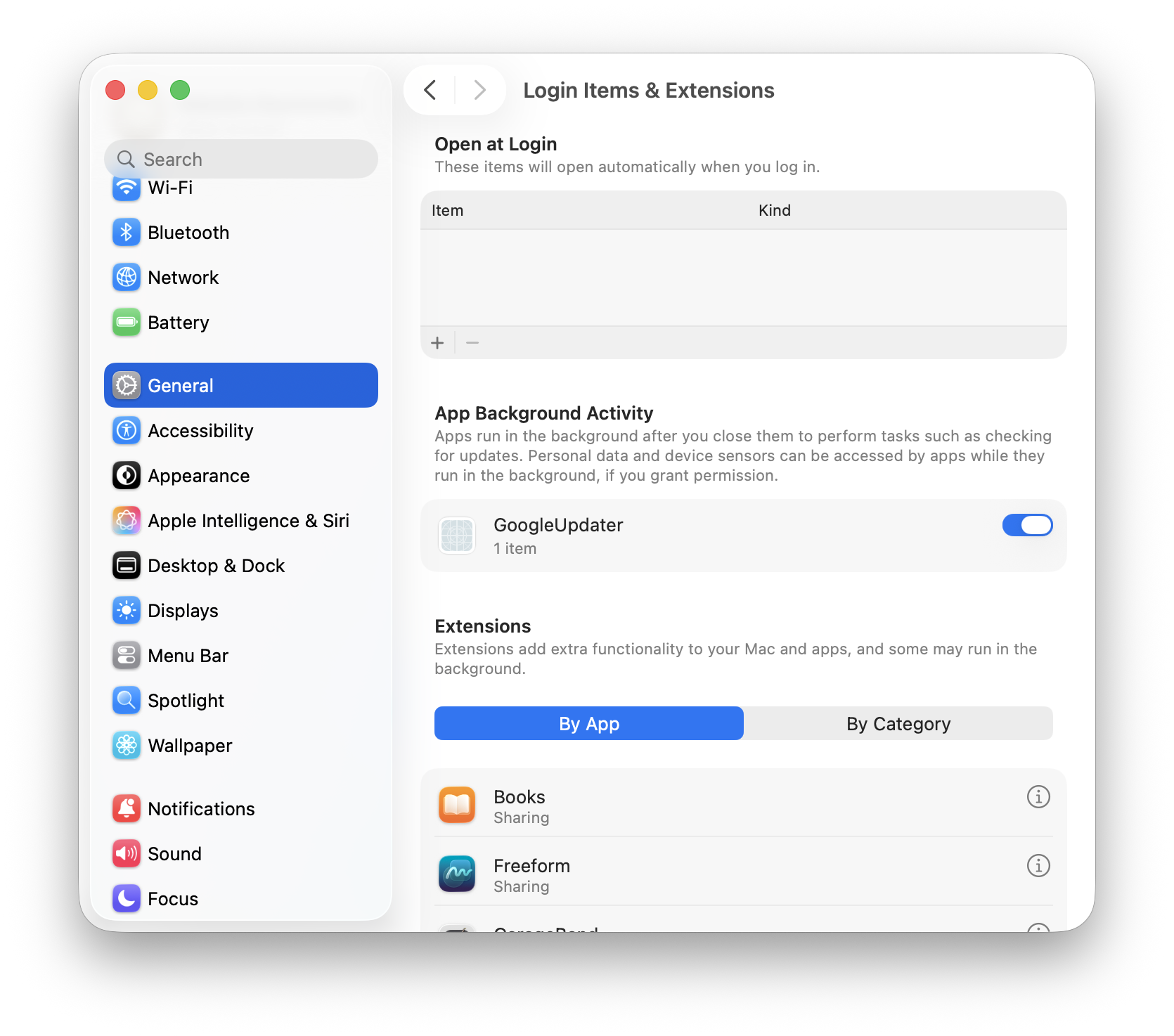
Closing an app window does not stop every process connected to it. Menu bar utilities, update agents, browser extensions, cloud services, and login items may continue working in the background. Individually, they use little energy, but several unnecessary processes can affect overall battery consumption.
It is worth reviewing applications you no longer use. If you need a tool to remove software and its related files, you can compare the best app cleaners for Mac and choose an option that meets your needs. Removing an app will not directly improve battery chemistry or restore lost capacity, but it can reduce drain when the app launches automatically or keeps background services active.
Before removing anything, check whether the software is actually active:
- Open Activity Monitor and select the Energy tab to see which apps have the greatest Energy Impact.
- Visit System Settings > General > Login Items & Extensions to find programs allowed to open at login or run in the background.
This helps you target the real sources of unnecessary battery drain.
Adjust MacBook Power Settings to Reduce Unnecessary Drain
You do not have to avoid demanding software every time you work without the charger. A few changes can reduce the energy used by tasks that do not need full performance.
Open System Settings > Battery to review the available MacBook power settings. The exact options depend on the model and macOS version.
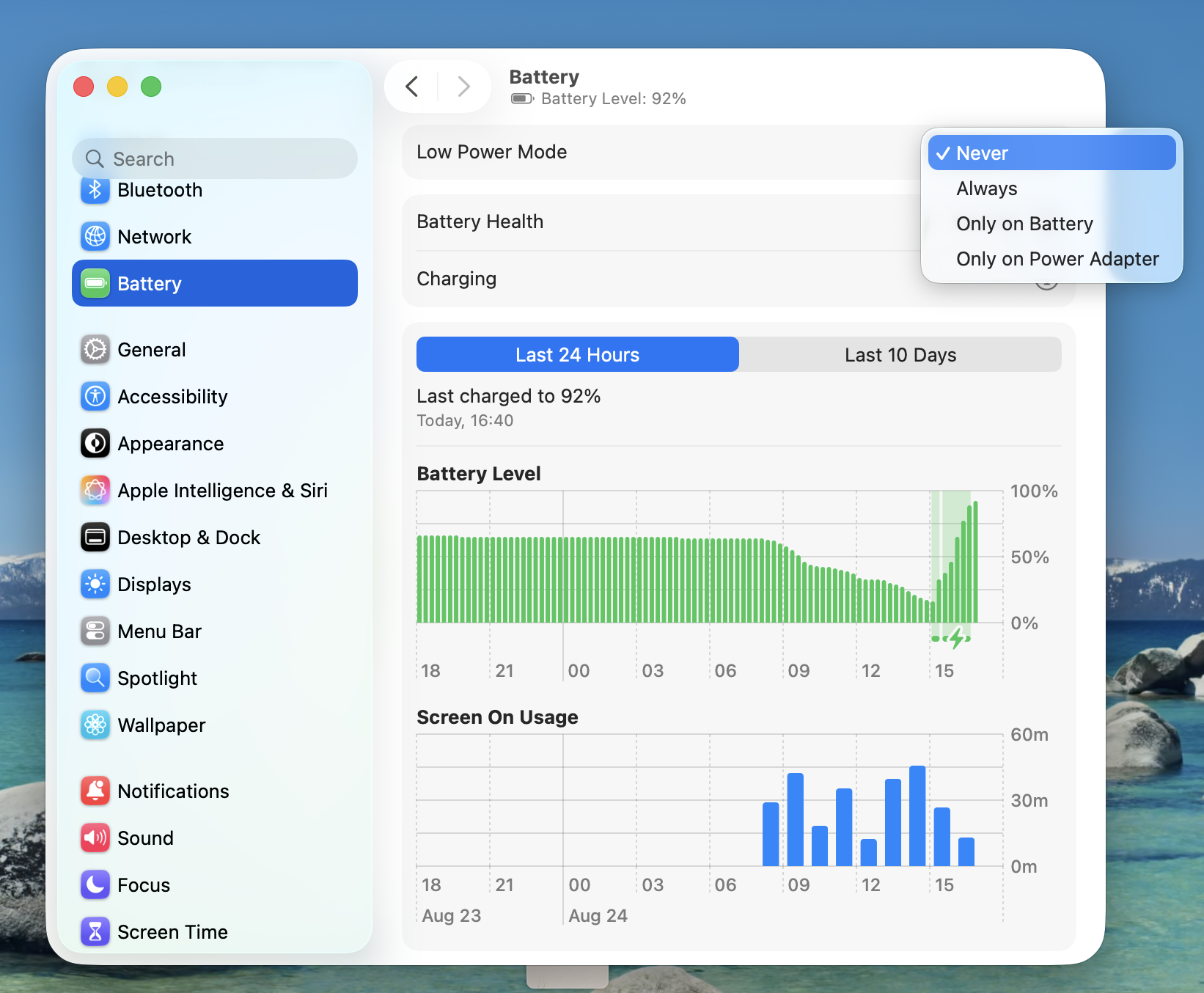
Low Power Mode reduces energy consumption when longer runtime matters more than maximum performance. You can also dim the display and prevent unnecessary activity while the MacBook is asleep. Apple’s official guide to saving energy on a Mac also recommends closing unused apps and disconnecting external devices that are not currently in use.
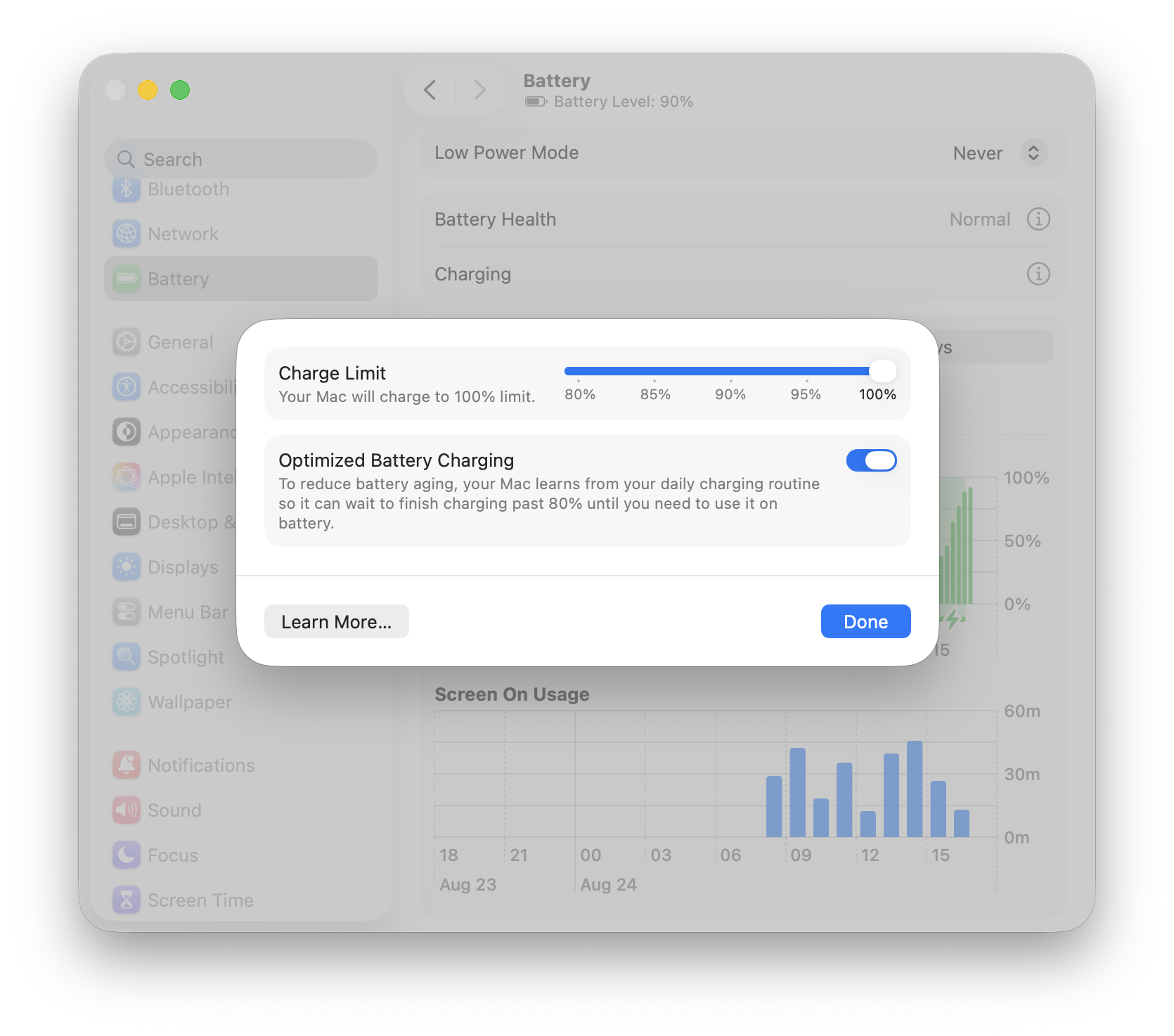
Optimized Battery Charging learns your usual charging routine and may delay charging past 80% when it expects the MacBook to remain plugged in. This reduces the time the battery spends fully charged. It will not prevent charge cycles or stop natural battery aging, but it can reduce unnecessary wear over time. You can find the option by clicking the information button beside Charging.
How Long Does a MacBook Battery Last?
There is no single answer because battery runtime depends on the MacBook model and how it is used. Light browsing or writing consumes less energy than video calls, gaming, software development, or media editing. Other factors affecting runtime include:
- Screen brightness
- Connected accessories
- Background syncing
- Battery condition
Even a laptop with excellent battery life in controlled testing may drain much faster during daily work. Manufacturer estimates are based on specific test conditions and cannot represent every combination of apps and settings. As the battery ages and its maximum capacity decreases, the same workload will require more frequent charging.
The question “How long does a MacBook last on battery?” is different from asking how long the battery remains usable. The first refers to runtime between charges; the second concerns battery condition over several years. Cycle count helps evaluate long-term use, but it should be considered together with maximum capacity, battery age, and any Service Recommended warning shown by macOS.


