

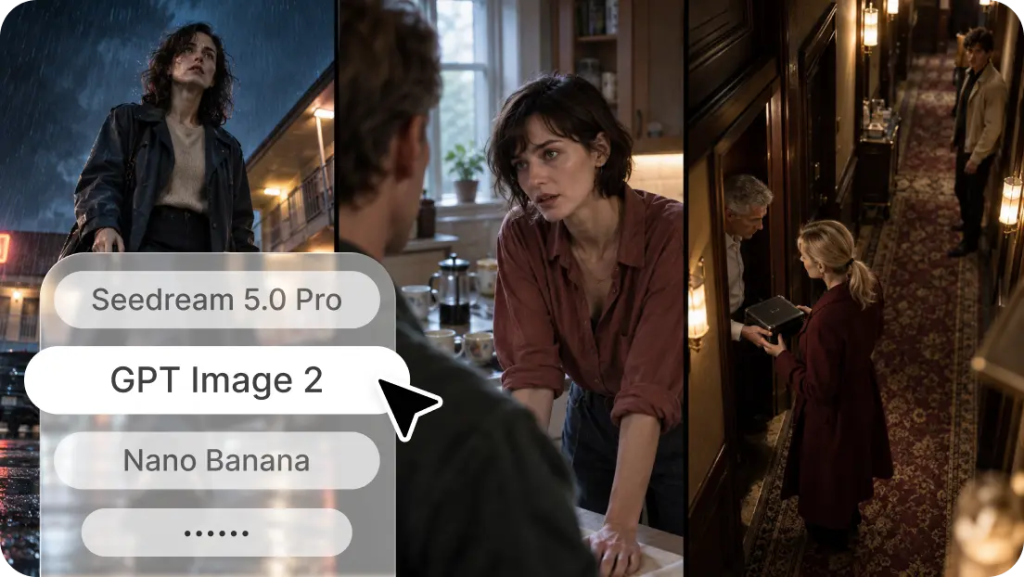
It's easy to dream up a bold image, but planning is required to get that concept to a final design. Dreamina AI fills this gap, converting written descriptions and reference images into creative visuals. Its image generation tools understand subjects, environments, colors, light, composition, and artistic styles. It features models such as Seedream, GPT Image, and Nano Banana, plus reference-guided creation and image-editing capabilities. There are different strengths in each model, and experimentation is vital to finding appropriate visual outcomes. To transform abstract concepts into tangible designs, there needs to be clear creative direction and purposeful refinement.
How an AI Image Generator Turns Words Into Visuals
An image-generation model is a model that learns the relationships between language and visual patterns from large amounts of data. In generation, your prompt tells the model what kind of subject, environment, mood, composition, and artistic treatment you want. An AI Image Generator leverages these relationships to generate visual interpretations, not just pull images from a library. Text-to-image generation begins with text instructions, and reference-based editing begins with existing images to guide or modify the results. Specific and compatible instructions tend to convey creative intentions more clearly than vague requests. But the generation is still random, meaning the same prompt can give rise to different images. With multiple models, Dreamina AI lets creators experiment with different interpretations without having to switch platforms.
Write Prompts That Communicate a Complete Visual Idea
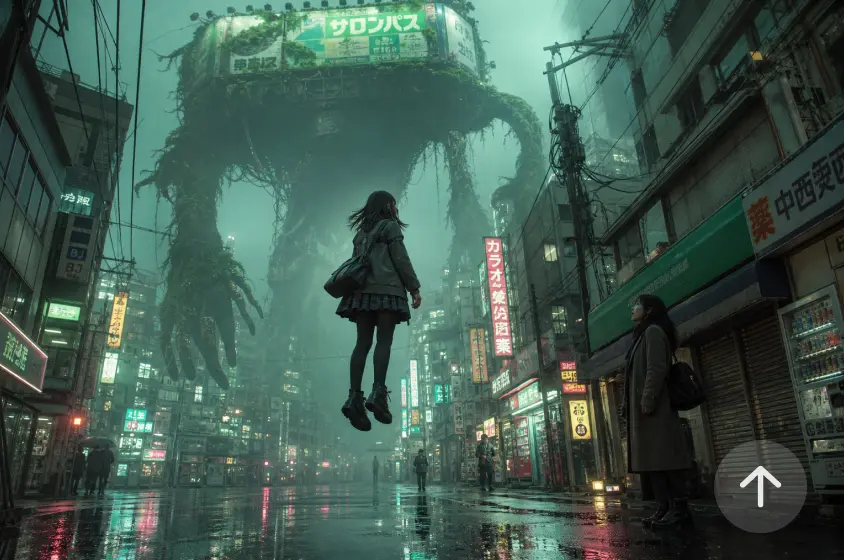
A useful prompt is a visual specification of a broad concept. First, determine the subject of the story, which can be a person, object, creature, setting, or abstract idea. Use appropriate backgrounds, objects, and atmosphere to describe the environment. Use camera movement, framing, composition, and negative space to indicate composition. Set up natural lighting, dramatic lighting, or soft studio lighting. Include artistic flair, textures, colors, visual mood, and realism. Lastly, determine the product to be created, whether a poster, illustration, advertisement, or thumbnail. Consider this progression:
- Basic: "Future greenhouse.
- Developed: "A futuristic greenhouse with luminous plants and glass structures.
- Refined: "Cinematic wide-angle illustration of a future greenhouse, glowing botanical creatures, foggy glass buildings, cold teal colors, detailed patterns and textures, and efficient use of negative space.
All additions should reinforce direction without adding conflicting requirements.
Steps to Turn Typed Ideas into Images with Dreamina
Step 1: Sign in and type your dream
- First, sign up or log in to Dreamina to start turning your ideas into visuals.
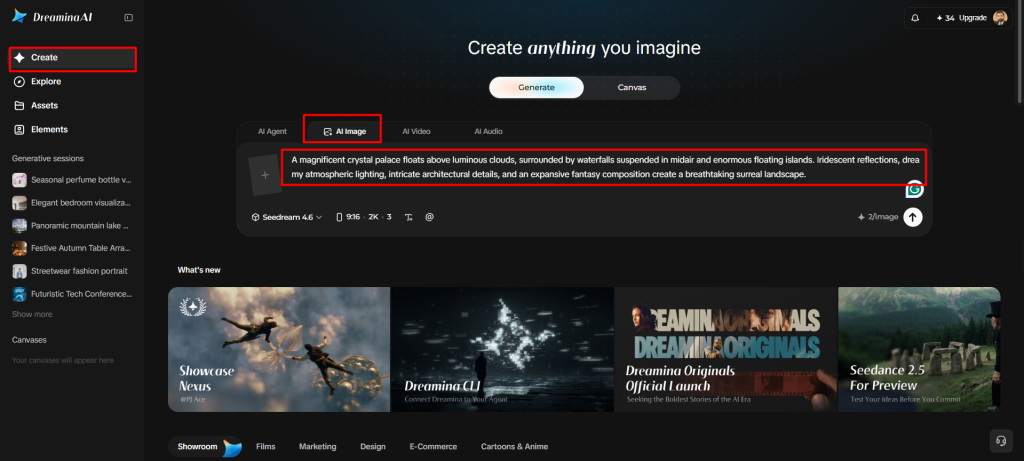
- Next, go to the "Create" tab on the left menu and choose "AI Image" now.
- Then, type a detailed prompt describing your dream, including its image elements, theme, and concept.
Step 2: Shape your vision with models and settings
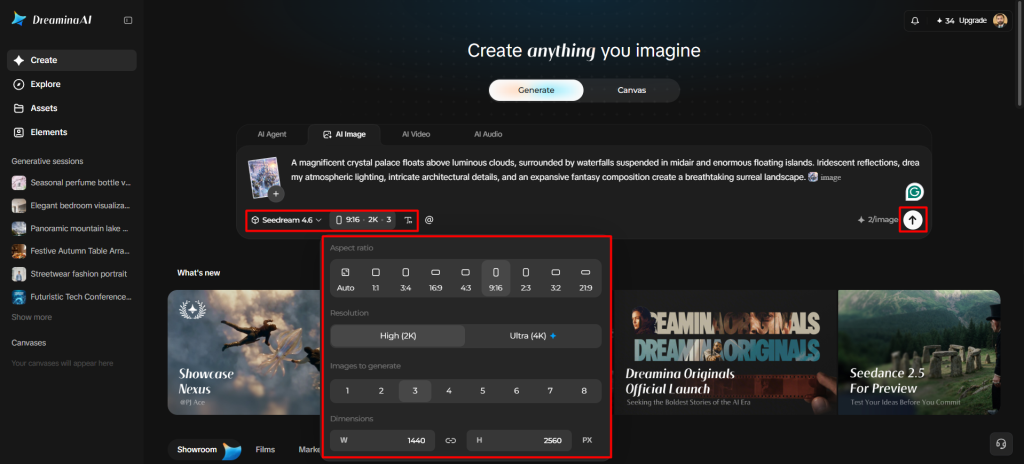
- Next, pick an image model from the options at the bottom of the dialogue box.
- Seedream, GPT Image, and Nano Banana are available, so choose whichever model fits your taste.
- Upload a reference image if you want your result to look more precise and natural.
- Next, set a custom aspect ratio and resolution using the "Aspect ratio" and "Resolution" tabs.
- Use "Images to generate" to choose how many images appear, and "Dimensions" for a custom size.
- To place words inside your finished artwork, open the "Draw text on image" tab.
- Finally, click the "Generate" tab and watch your typed idea slowly become a real image.
Step 3: Polish your creation and save it
- Dreamina delivers the requested number of image drafts for you to review right away. If you dislike the drafts, choose "Edit prompt" or "Regenerate" to refine the generated results.
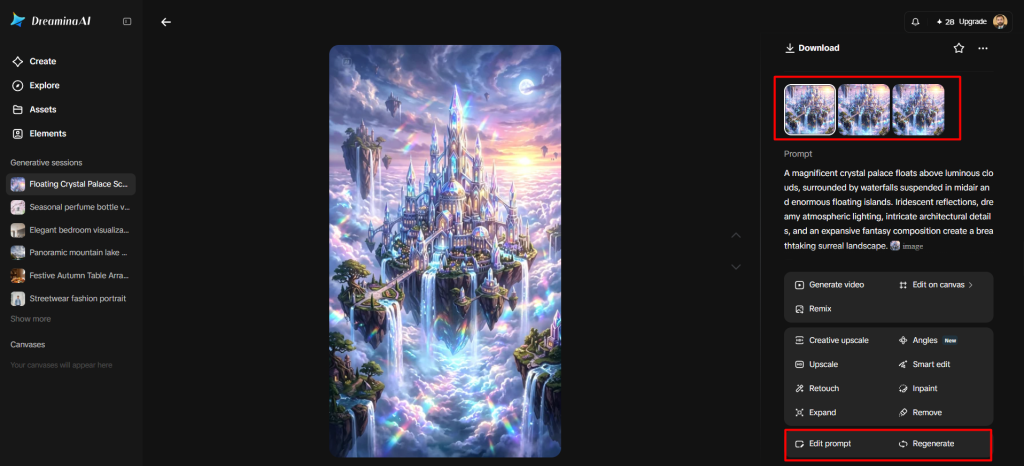
- You can also upscale any generated image with the "Creative upscale" option for added clarity.
- Try "Retouch" to correct flaws, clean up areas, or enhance details in the chosen image.
- Use "Remove" to delete anything unwanted from your image without leaving any visible traces behind. You can also expand your image using the "Expand" tab for a much wider scene.
- To create a video from your generated image, navigate to the "Generate video" tab.
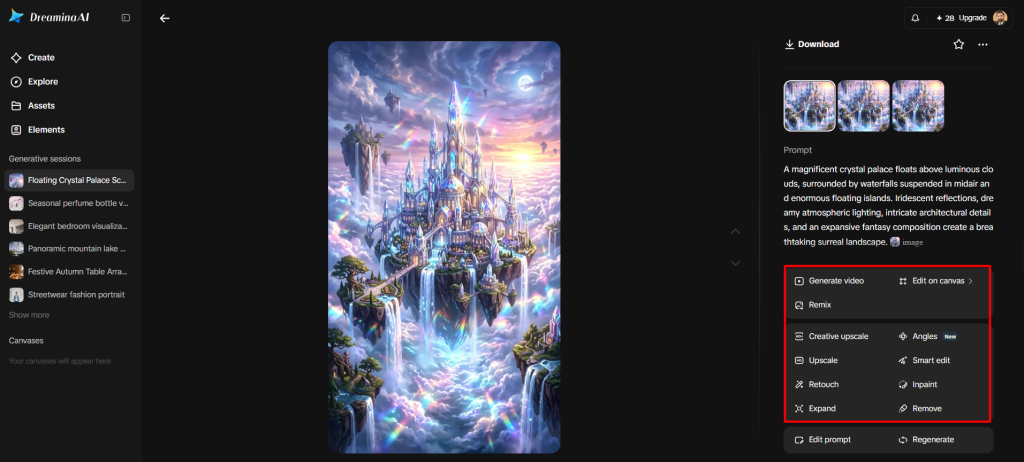
- Dreamina gives you complete freedom to edit your creation in whatever way you personally like.
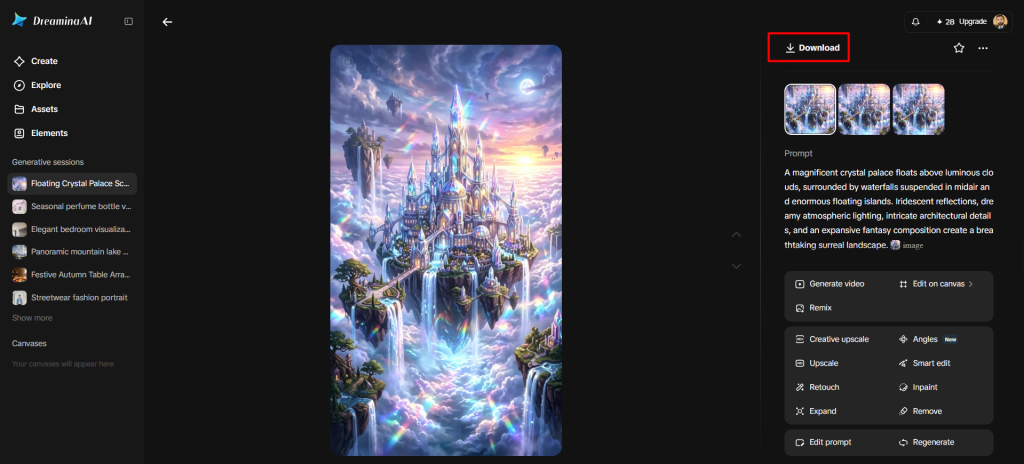
- Finally, click the "Download" tab at the top right to save the image file locally.
Choose the Right Image Model for Your Creative Direction
The multi-model interface of Dreamina AI allows creators to try out various ways to generate images. Some models might be required for realistic-looking portraits, illustrated characters, detailed backgrounds, and text-heavy compositions. Don't assume that one model is always the best; instead, compare each one to your needs. A change of model may yield a more suitable interpretation if a clear prompt yields inappropriate results. Verify model names, versions, and controls, as the platforms may change. This facilitates the creative intent to match the tool.
Six Ways to Transform a Simple Idea Into a Distinctive Image
- Unexpected combinations: Put together different concepts that go well together, then explain how their shapes, materials, or environments interact.
- Use purposeful lighting and weather to set a recognizable time, mood, and environmental condition in the atmosphere.
- Colour direction: Select a limited palette and discuss how dominant colours work with contrasting accents.
- Composition control: Place the principal subject intentionally; use negative space for titles or supporting text.
- Material definition: Use brushed metal, velvet, glass, paper, or stone to convey unique surface qualities.
- Style experimentation: Experiment with the photographic, painterly, illustrated, or futuristic treatments of the central idea.
Use Reference Images to Add Visual Direction
Reference pictures convey visual information that sometimes is hard to articulate in writing. They can help direct composition, the way things look, color relationships, and atmosphere. Dreamina AI enables reference-guided creation, linking current visual content to new creative avenues. A reference used for guidance is not the same as an image to be edited. Select the references that will assist in the desired outcome and not conflict with the visual information. Mix references and explicit cues to indicate which features are most important. When posting third-party imagery, always verify permission and usage rights, particularly for commercial uses.
Turn Generated Drafts Into Finished Creative Assets
Review drafts created – look at composition, prompt alignment, visual clarity, consistency. If the general idea is not on the mark, make larger changes to the prompt before making smaller changes. Select details with Retouch, remove unwanted objects or distracting elements with Remove. Expand gives extra canvas to adjust images to various layouts. Creative upscale can enhance output resolution with the aid of the tools available. Thoroughly check text, hands, fine details, edges, and visual consistency before exporting. Dreamina AI is a generation and editing tool that can take fledgling ideas and make them more polished creative assets.
Conclusion
Clear prompts, appropriate model selection, helpful references, and careful refinement are all essential to successful image generation. Dreamina AI integrates several image generation models and tools into a single creative process. Don't add a ton of instructions; intentionally try out composition, lighting, materials, and direction. Check each result and make specific changes to the settings. By practicing regularly, creating text-to-image becomes a malleable process for converting abstract concepts into unique images.


